

See all the icons available on Font Awesome's website. You have a wide array of possibilities when it comes to customizing your icons too!
You can now add Font Awesome icons into your content yourself with the "UIS Icon" block!
How to:
- Open a page in the Gutenberg editor.
- Add a UIS Icon block using the block inserter.
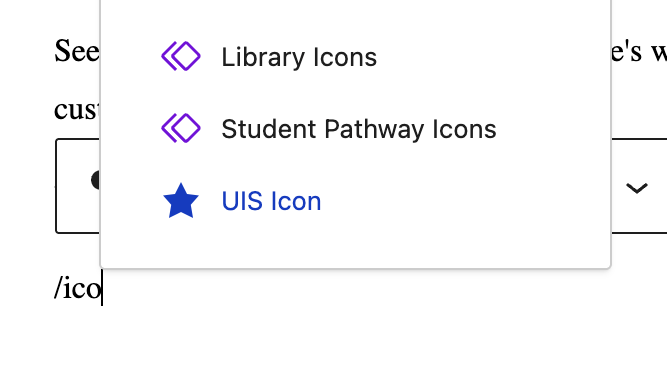
- Select Change icon, then search or browse the collection.

- Choose an icon and adjust its appearance in the block settings.
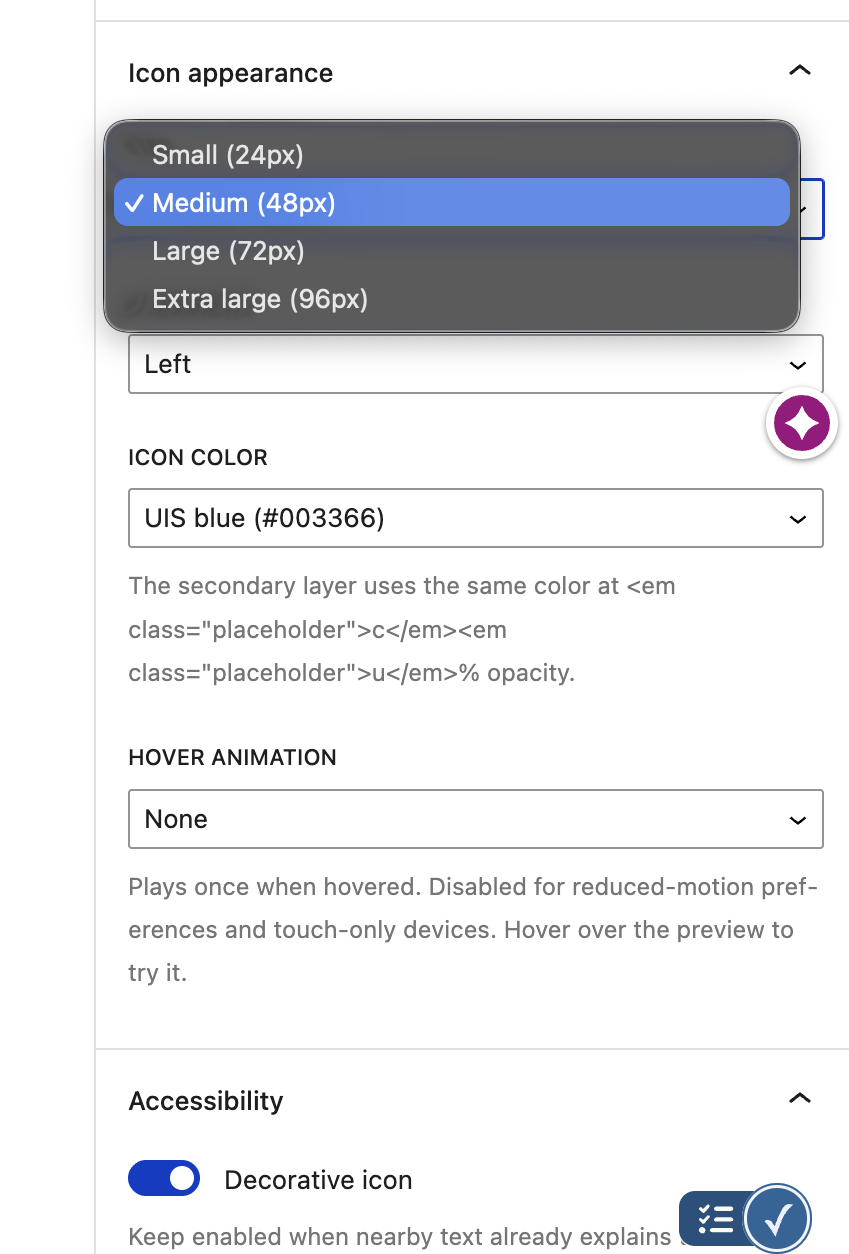
Block Settings
Size
Small
Medium
Large
Extra Large
Alignment
Left
Center
Right
Color
UIS Blue
Coral
Orange
Yellow
Bright Blue
Teal
Turquoise
Green
Purple
Magenta
Hover Animation
Hover over each icon to see its animation!
Beat
Fade
Beat Fade
Bounce
Buzz
Flip
Flip 360
Float
Jello
Shake
Spin
Spin reverse
Spin pulse
Spin snap
Spin snap (4 stops)
Spin snap (8 stops)
Swing
Wag